> ## Documentation Index
> Fetch the complete documentation index at: https://hacktronai-changelog-e1a164be.mintlify.site/llms.txt
> Use this file to discover all available pages before exploring further.
# GitLab
> Configure repository access for GitLab.com and self-hosted GitLab.
## Prerequisites
You need to be an owner of the GitLab group you want to connect to Hacktron.
This is required to create a service account for Hacktron to use.
## Configure access
In GitLab, under the group you want to connect to Hacktron, go to
**Settings** and select **Service Accounts**.
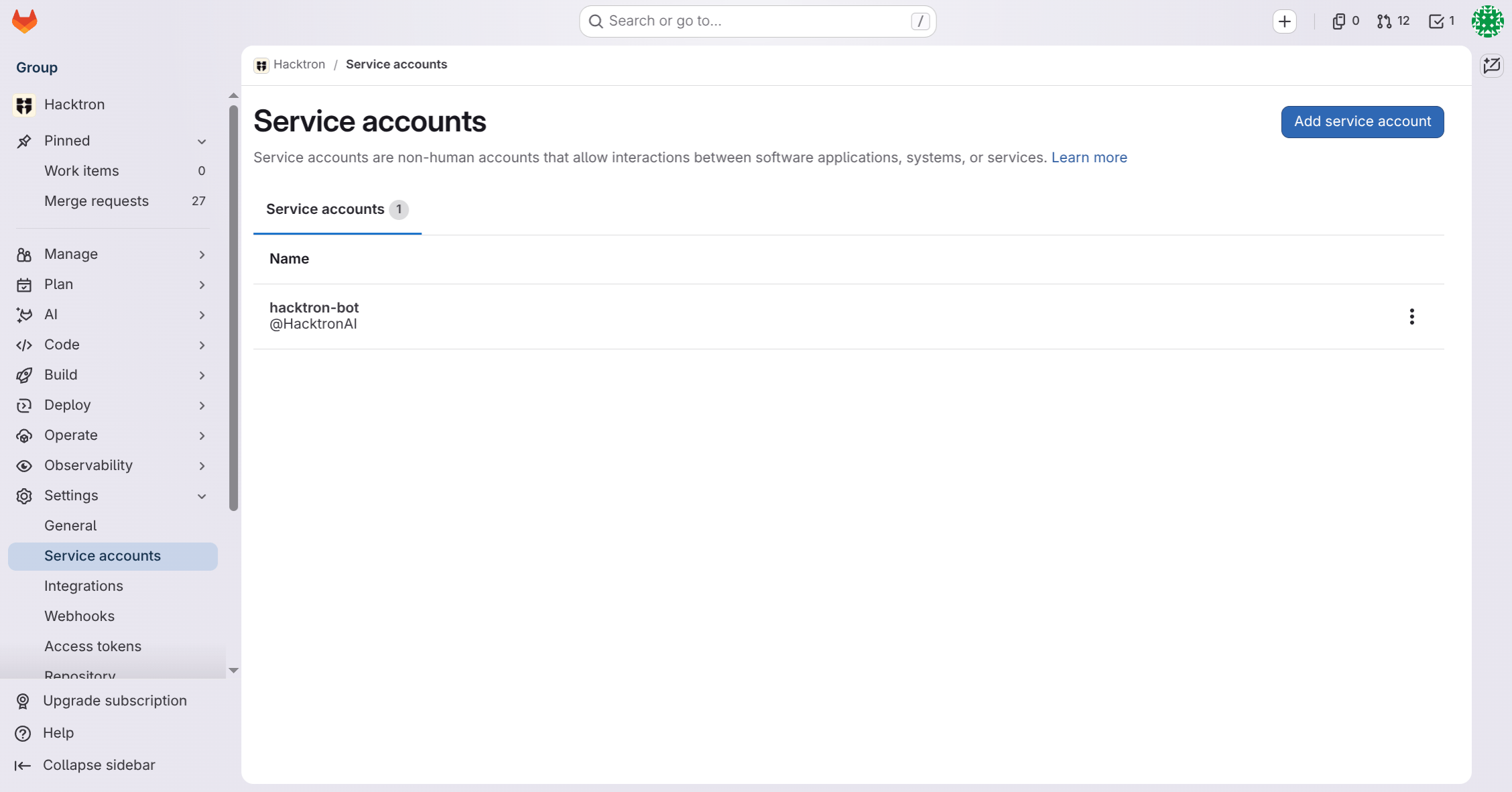 Give the service account a descriptive name, e.g. "Hacktron".
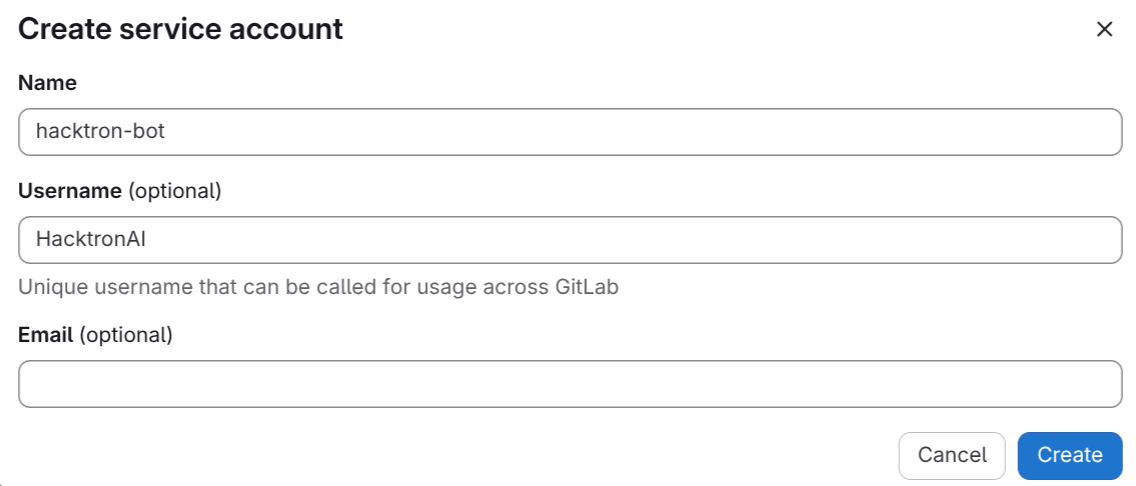 Click **Create**.
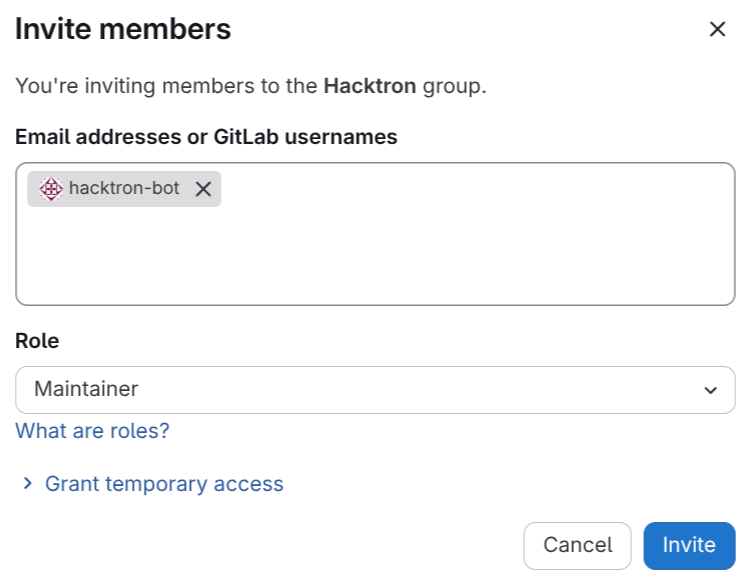
In the Group or Projects you want to connect to Hacktron, grant the
service account Maintainer access.
Click **Create**.
In the Group or Projects you want to connect to Hacktron, grant the
service account Maintainer access.
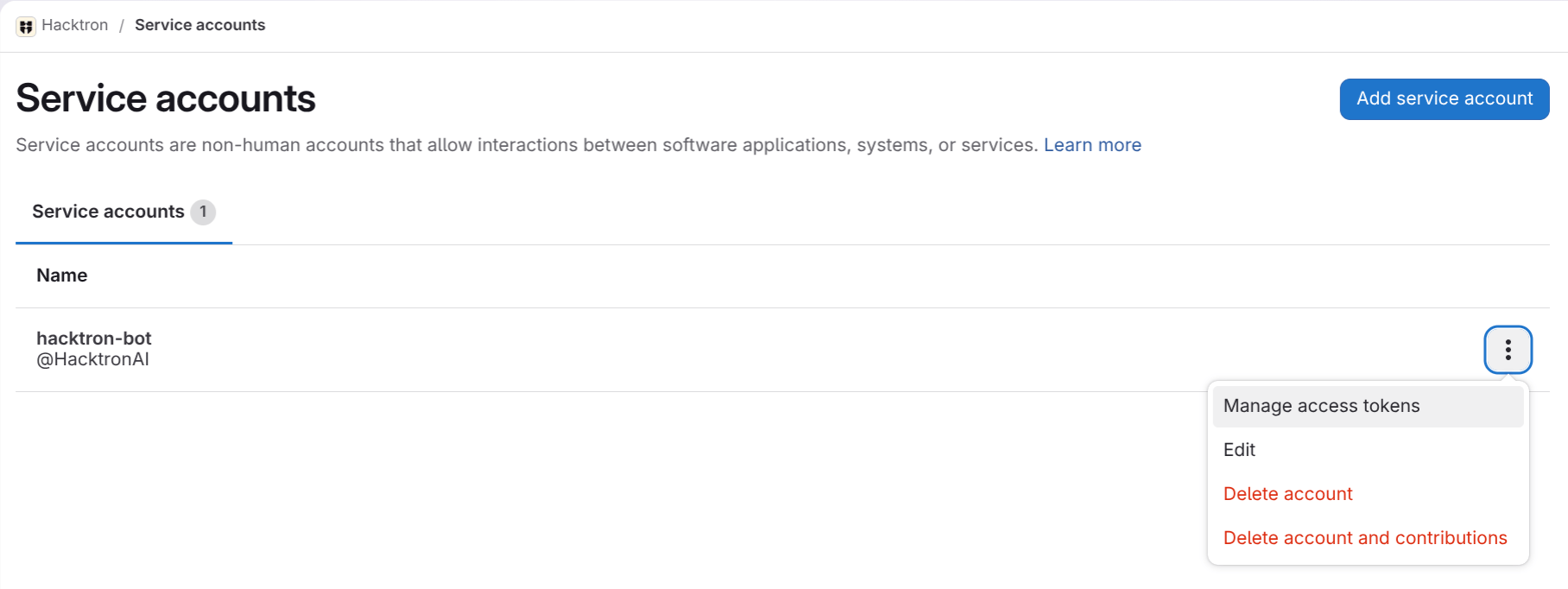
 In the service account page, select the service account and click on
**Manage access tokens**.
In the service account page, select the service account and click on
**Manage access tokens**.
 Click on **Add new token**, and grant it the `api` scope:
* `api`
The `api` scope is required because Hacktron registers merge-request
webhooks on your projects (a write operation) to receive events and run
code reviews. Hacktron does not retain any source code after each review
is complete.
Click **Generate token**.
Click on **Add new token**, and grant it the `api` scope:
* `api`
The `api` scope is required because Hacktron registers merge-request
webhooks on your projects (a write operation) to receive events and run
code reviews. Hacktron does not retain any source code after each review
is complete.
Click **Generate token**.
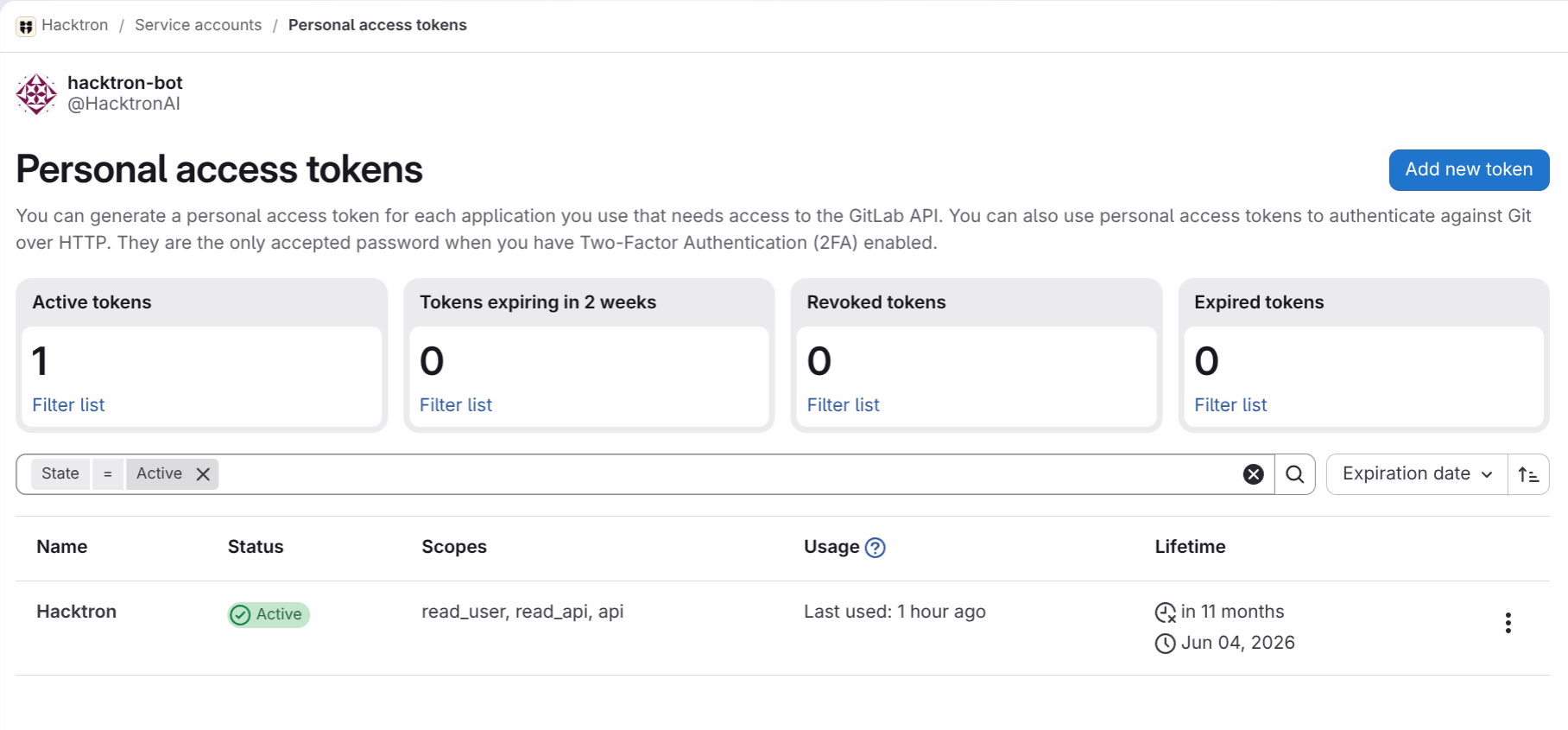 **Personal access tokens have expiration dates.** Ensure the expiration date covers the duration of your intended use of Hacktron to avoid service interruption.
In Hacktron, go to **Integrations** and click **Connect** under **GitLab**.
**Personal access tokens have expiration dates.** Ensure the expiration date covers the duration of your intended use of Hacktron to avoid service interruption.
In Hacktron, go to **Integrations** and click **Connect** under **GitLab**.
 Enter the token you created earlier, and click **Connect**.
That's it! Hacktron will now run security reviews for every pull request in the selected repositories.
## Self-hosted GitLab / GitLab Enterprise
Hacktron supports self-hosted GitLab and GitLab Enterprise through the same
Personal Access Token flow described above. The only difference is one extra
step when you connect.
Follow the same **Configure access** steps to create a service account
(**Settings** → **Service Accounts**), grant it Maintainer access, and generate
a token from the service account's **Manage access tokens** with the `api`
scope.
On self-managed GitLab, service accounts require GitLab EE, and by default
only an instance administrator can create them (administrators can also
allow top-level group Owners to create them). Alternatively, a personal
access token from any user with Maintainer access and the same scopes works
identically.
When you open the **Connect GitLab** modal in Hacktron, select **Self-hosted /
GitLab Enterprise** and enter your instance's base URL (e.g.
`https://gitlab.example.com`) before entering the token.
Self-hosted prerequisites:
* Your GitLab instance must be reachable from Hacktron over HTTPS with a
valid TLS certificate.
* GitLab installed under a URL subpath (e.g. `https://example.com/gitlab`)
is not supported — the base URL must be the instance origin.
* The token must carry the `api` scope on your self-hosted instance.
Enter the token you created earlier, and click **Connect**.
That's it! Hacktron will now run security reviews for every pull request in the selected repositories.
## Self-hosted GitLab / GitLab Enterprise
Hacktron supports self-hosted GitLab and GitLab Enterprise through the same
Personal Access Token flow described above. The only difference is one extra
step when you connect.
Follow the same **Configure access** steps to create a service account
(**Settings** → **Service Accounts**), grant it Maintainer access, and generate
a token from the service account's **Manage access tokens** with the `api`
scope.
On self-managed GitLab, service accounts require GitLab EE, and by default
only an instance administrator can create them (administrators can also
allow top-level group Owners to create them). Alternatively, a personal
access token from any user with Maintainer access and the same scopes works
identically.
When you open the **Connect GitLab** modal in Hacktron, select **Self-hosted /
GitLab Enterprise** and enter your instance's base URL (e.g.
`https://gitlab.example.com`) before entering the token.
Self-hosted prerequisites:
* Your GitLab instance must be reachable from Hacktron over HTTPS with a
valid TLS certificate.
* GitLab installed under a URL subpath (e.g. `https://example.com/gitlab`)
is not supported — the base URL must be the instance origin.
* The token must carry the `api` scope on your self-hosted instance.