> ## Documentation Index
> Fetch the complete documentation index at: https://hacktronai-changelog-e1a164be.mintlify.site/llms.txt
> Use this file to discover all available pages before exploring further.
# GitHub Enterprise Server
> Configure repository access for a self-hosted GitHub Enterprise Server instance.
This guide is for GitHub Enterprise Server customers with a custom domain.
Standard GitHub.com organizations should use the [GitHub.com](/platform/repositories/github) guide instead.
## Configure access
There are two ways to configure repository access for GitHub Enterprise Server:
This will register a GitHub App on your server. You will be redirected to
your instance to create it.
This flow must be completed by a GitHub organization owner.
Create a personal access token that can be used to access repositories for white-box pentests.
PR Reviews are not available with a PAT. Use [GitHub App](#configure-github-app) instead.
## Configure GitHub App
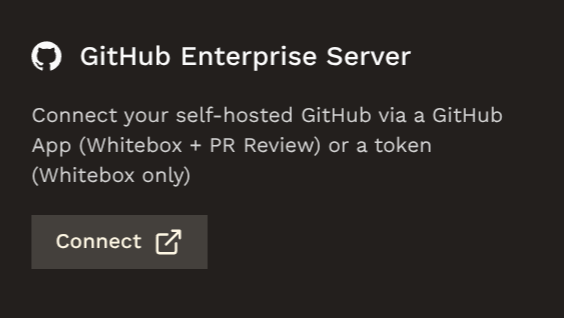
In Hacktron, go to **Integrations** and click **Connect** under **GitHub Enterprise Server**.
 Enter your server base URL, e.g. `https://github.example.com`, and the organization name.
You must be an owner of the organization to install the GitHub App.
If GitHub prompts you to sign in, enter your GitHub login credentials as you normally would.
GitHub will prompt you to create a new GitHub App. Give it a descriptive name (`hacktron-app` by default).
Enter your server base URL, e.g. `https://github.example.com`, and the organization name.
You must be an owner of the organization to install the GitHub App.
If GitHub prompts you to sign in, enter your GitHub login credentials as you normally would.
GitHub will prompt you to create a new GitHub App. Give it a descriptive name (`hacktron-app` by default).
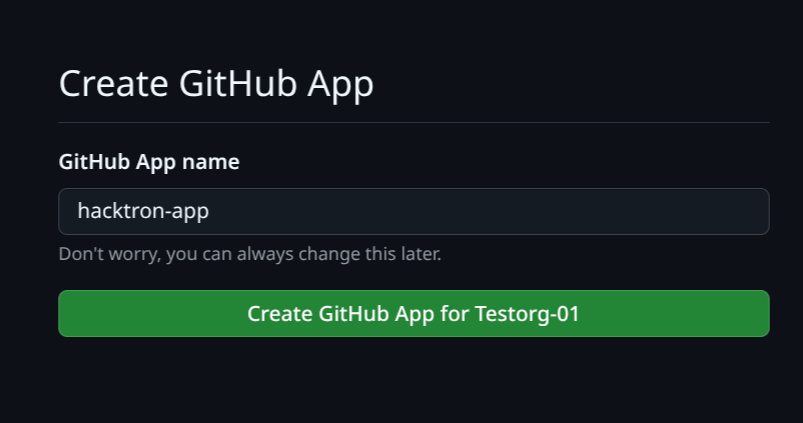 Click **Create GitHub App**. This will create a new GitHub App with the required permissions.
Your browser will now redirect you to install the app you just registered.
Click **Create GitHub App**. This will create a new GitHub App with the required permissions.
Your browser will now redirect you to install the app you just registered.
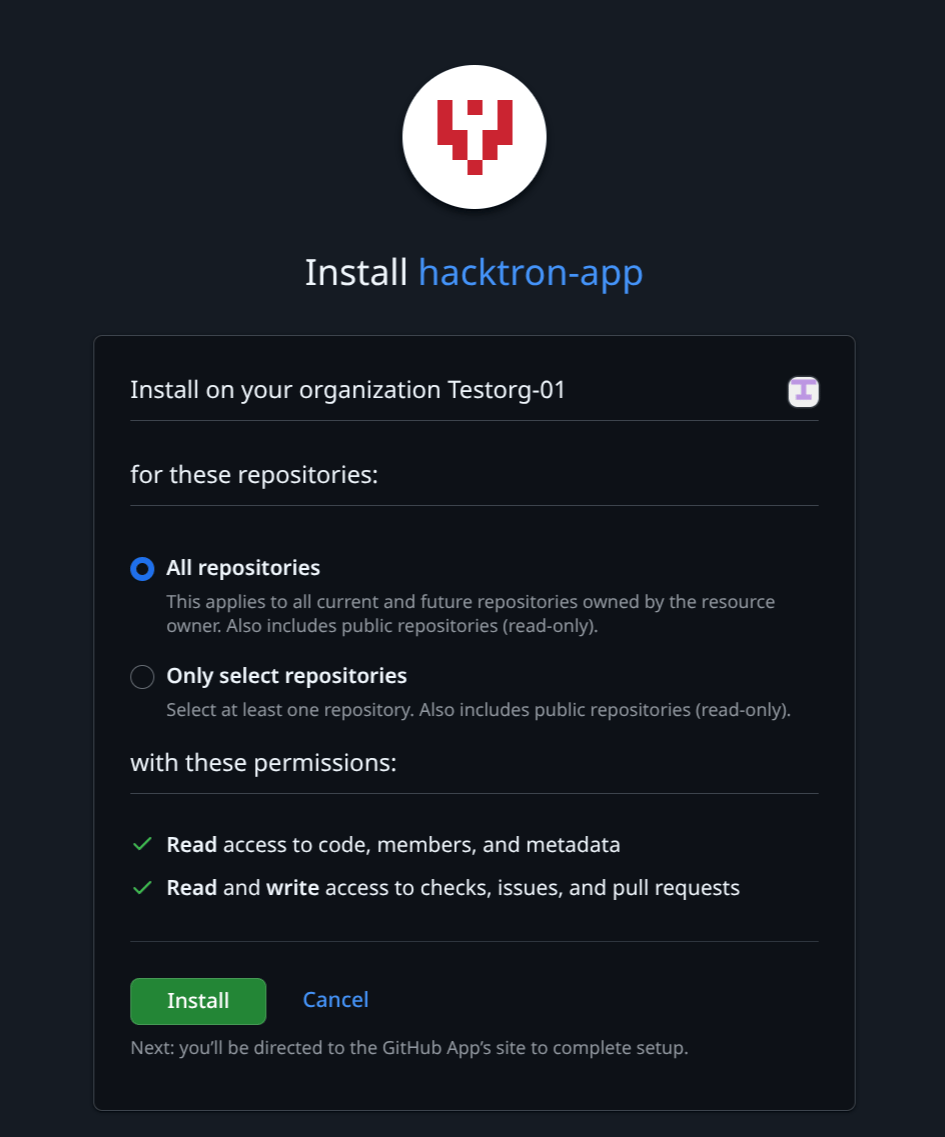 Select the repositories you want to grant access to, then click **Install**.
Hacktron requests the following permissions:
* Read access to code, members, and metadata
* Read and write access to checks, issues, and pull requests
This is required for code review, issue management, and pull request generation. Hacktron does not retain
any source code after each review is complete.
## Configure Personal Access Token
Go to `http:///settings/personal-access-tokens/new`, or click on your avatar on the top right and select "Settings",
then "Developer settings", then "Personal access tokens".
Give the token a descriptive name, e.g. "Hacktron".
Select the repositories you want to grant access to.
This can be changed later.
Select the following repository permissions:
* Read-only access to contents
* Read-only access to metadata (automatically configured)
This is required for running white-box pentests.
Click "Create token".
Copy the token and save it in a secure location.
Go to the **Integrations** page in Hacktron and click **Connect** under **GitHub Enterprise Server**.
Select the **Personal Access Token** option.
Select the repositories you want to grant access to, then click **Install**.
Hacktron requests the following permissions:
* Read access to code, members, and metadata
* Read and write access to checks, issues, and pull requests
This is required for code review, issue management, and pull request generation. Hacktron does not retain
any source code after each review is complete.
## Configure Personal Access Token
Go to `http:///settings/personal-access-tokens/new`, or click on your avatar on the top right and select "Settings",
then "Developer settings", then "Personal access tokens".
Give the token a descriptive name, e.g. "Hacktron".
Select the repositories you want to grant access to.
This can be changed later.
Select the following repository permissions:
* Read-only access to contents
* Read-only access to metadata (automatically configured)
This is required for running white-box pentests.
Click "Create token".
Copy the token and save it in a secure location.
Go to the **Integrations** page in Hacktron and click **Connect** under **GitHub Enterprise Server**.
Select the **Personal Access Token** option.
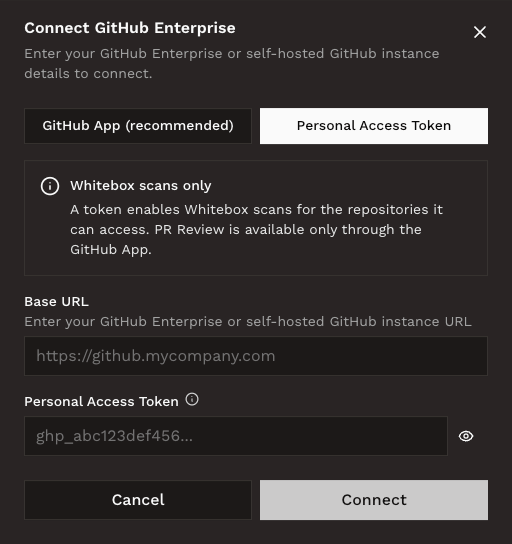 Enter the token you created earlier.
Click **Connect**.
That's it! Hacktron will now run security reviews for every pull request in the selected repositories.
Enter the token you created earlier.
Click **Connect**.
That's it! Hacktron will now run security reviews for every pull request in the selected repositories.